CueAir · Monitor-only click
Keep click out of the audience mix
updated
- Select the dedicated input. For stereo playback, check both channels or the linked pair.
- Remove audience assignment. In
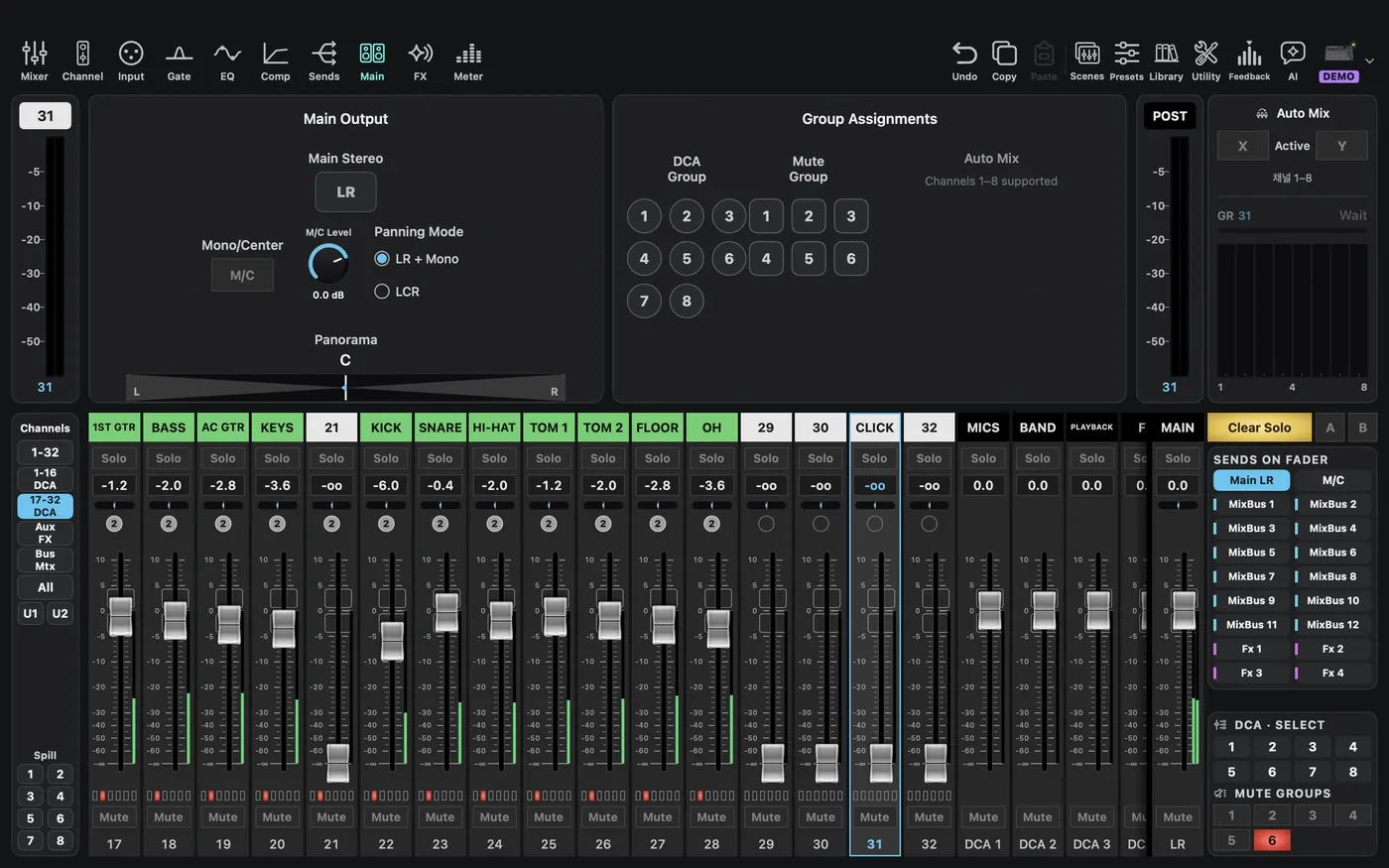
Main→Main Output→Main Stereo, turnLRoff. Turn offM/Cas well if used for the audience. Lowering the channel main fader alone is not equivalent. - Check scope first. Open the click input's
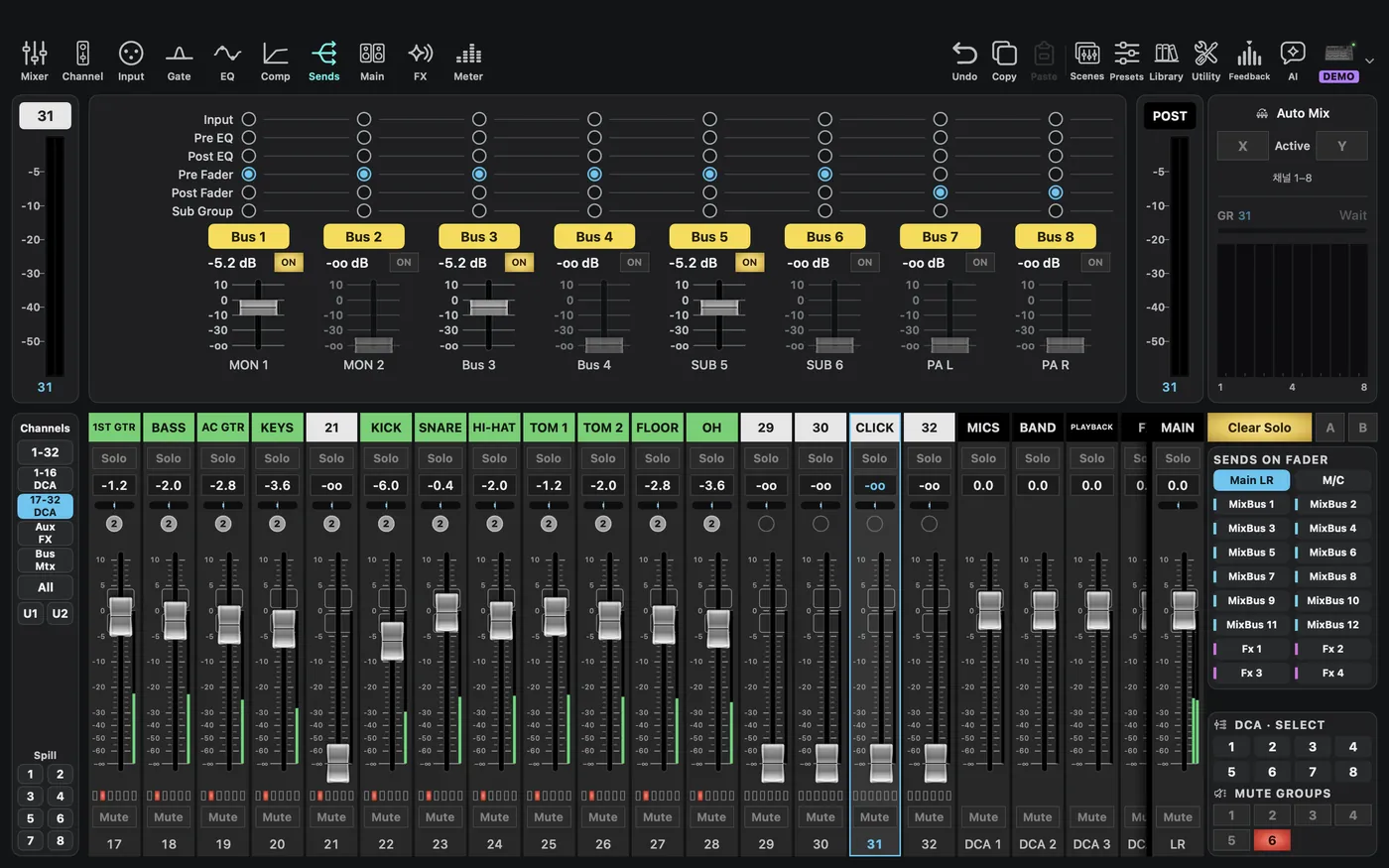
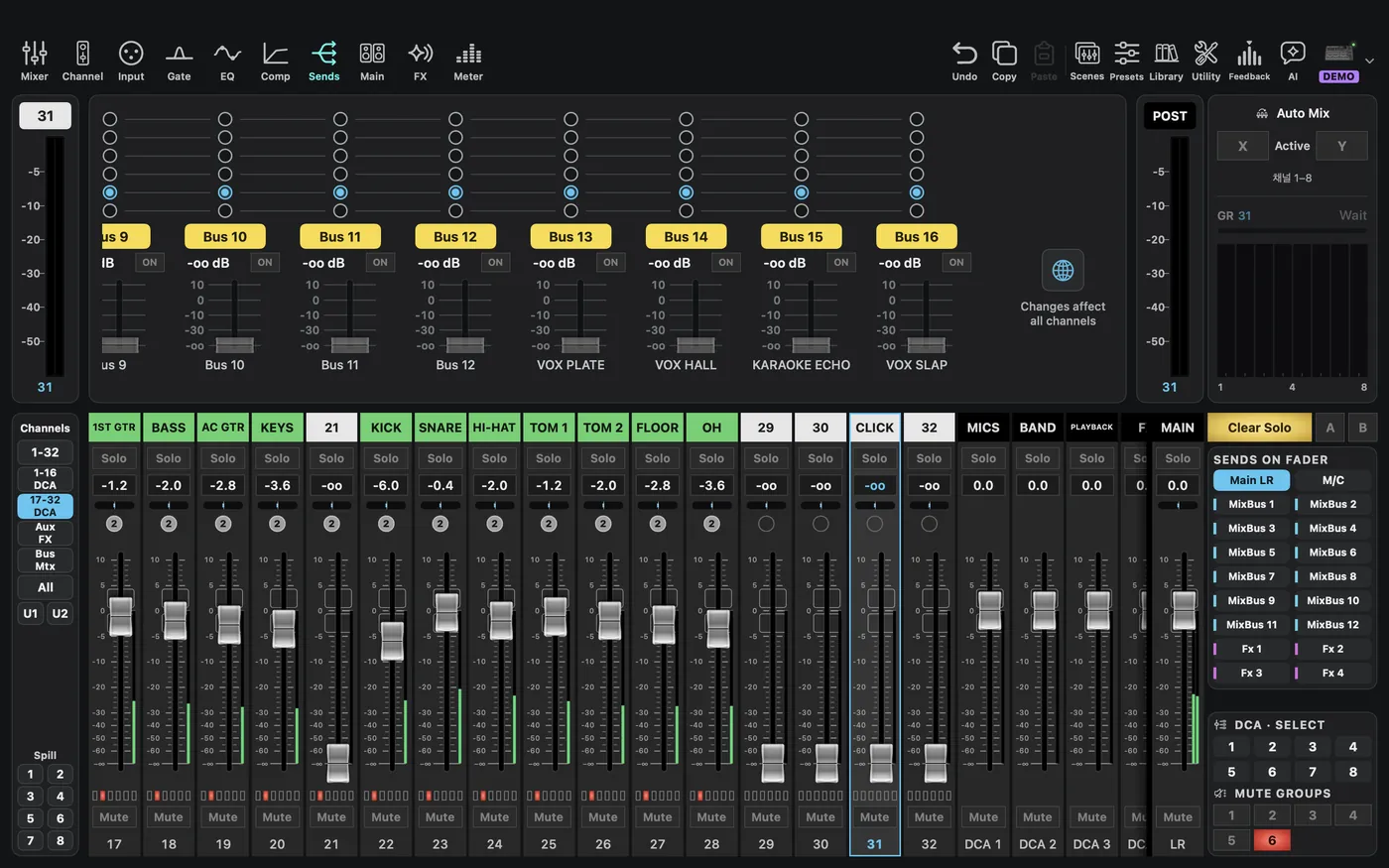
Sendsand ensureChanges affect all channelsis off before selecting any tap. Changing a tap with it on can change other inputs feeding that destination; turning it off afterward does not restore those values. On X32/M32, odd/even bus partners such as Bus 1/2 may change together, so first check the partner's purpose and current tap. This is separate from channel stereo linking. Stop and ask the operator if the scope is unclear or the partner would be affected unintentionally. - Check indirect audience paths. X32 monitor buses can also feed LR. Even with input LR off, a monitor bus routed back to the audience can leak click. Review bus LR/M/C, matrix, FX, and other paths with the operator; do not blindly disconnect existing service routing.
- Choose a pre-fader point. After checking scope, reselect the click input and record the original taps, including the partner bus. X32/X AIR labels include
Pre Fader. Verify that only the intended input and bus pair changed.Pre EQandPost EQare different earlier taps, not synonyms. TF usesPre/Post; never copy numeric values or detailed tap meanings across families. - Set each monitor send. Enable each actual destination on models with a send-enable button; on models without one, adjust the send fader. Start playback and send levels low.
- Verify the whole output path. Check bus mute/master, output patch, in-ear transmitter or speaker, and each musician's level. Pre-fader does not bypass channel mute, bus mute/master, upstream processing, or output patching.
“Everyone” means each actual monitor path, not all buses automatically. Solo is the operator's listening check, not a click-distribution control.