
Cuetone
CueAir User guide

CueAir · Scenes and files

Onboard Scenes

updated

Scenes manages mixer storage, not Mac files. The button is disabled for unsupported connections. Onboard scenes are unavailable offline.

  1. Select the slot and check its name.
  2. Save current state to a verified empty slot, or explicitly review an overwrite.
  3. Recall loads the selected scene and changes the targeted mixer settings after confirmation. Check scope before approving.
  4. Clear opens a delete confirmation with a Delete button. Do not experiment with the only copy of a scene.

X AIR has 64 slots; X32/M32 has 100. App slots 1 through 100 correspond to console scenes 00 through 99. The console-selected scene display is not proof of completed recall. X AIR Recall Scope and X32/M32 Safes are different mechanisms. Enabled Safes retain the current protected settings during recall.

Numeric undo, preset undo, scene recall, and file Load are separate actions. Do not assume ⌘Z reverses a scene or entire file operation.
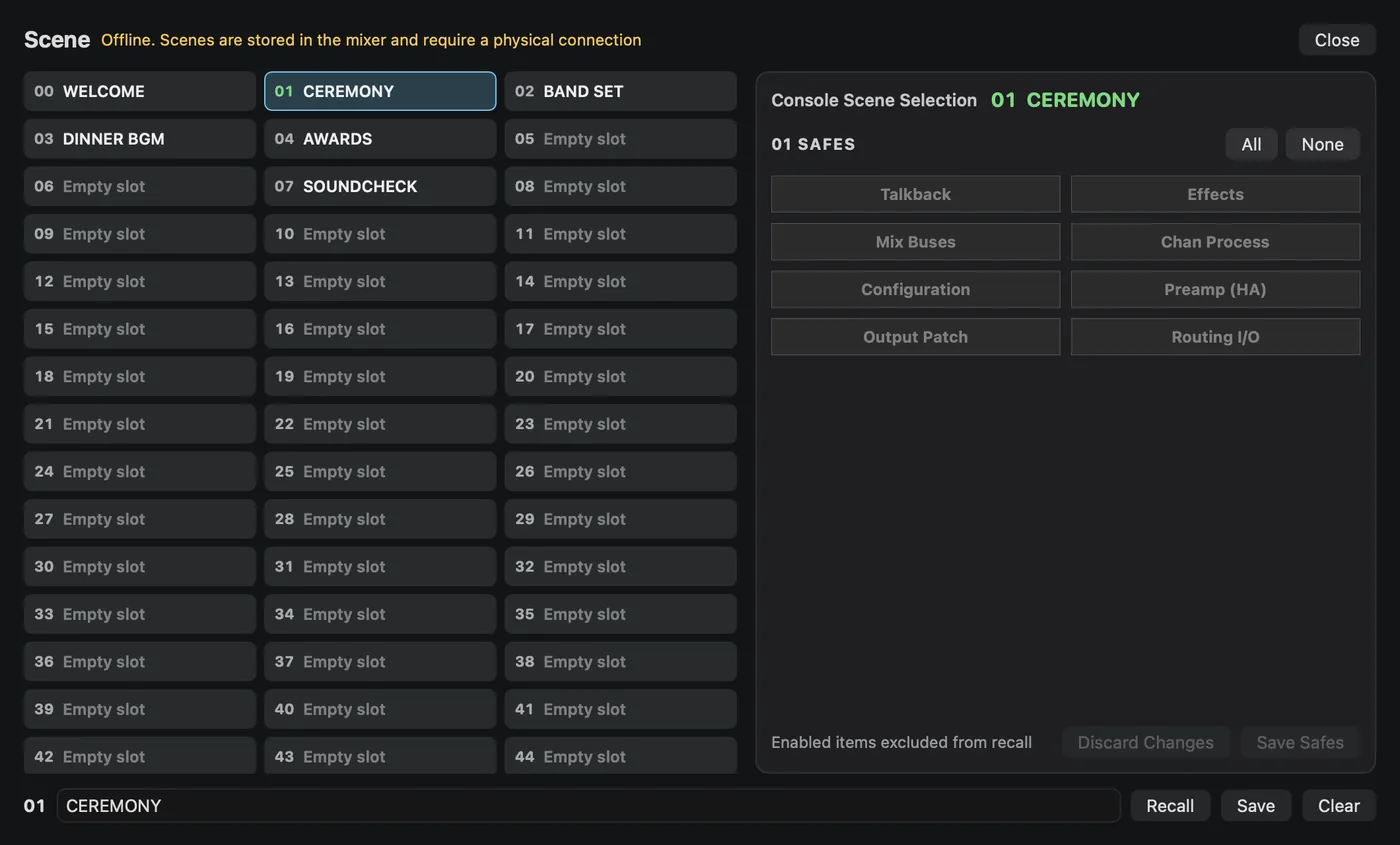
The X32 Scenes window: console scene numbers (00 to 99) and names on the left, Safes for the selected scene on the right, and Recall, Save, and Clear at the bottom. In Demo and Offline, the top shows Offline with a note that scenes are stored in the mixer and need a physical connection.

Need more help? Ask a question

Allow ad performance measurement?

If allowed, we share visits, purchases, ad/browser identifiers, IP address and browser information with Meta, Google, NAVER to measure ads. We do not share your email, payment credentials or download links. You can decline and use all features, or change your choice anytime.

Privacy policy