
CueAir · CueAi assistant
Connect a CueAi phone
updated
Connect the CueAi app on iPhone to CueAir on your Mac to ask about the sound and request adjustments away from the mixer. The phone never connects to the mixer. Requests go through the server to CueAir on the Mac, and CueAir does the reading and writing.
Before you connect
- CueAir on the Mac must be signed in to your CueTone account.
- CueAir must be connected to a mixer that supports CueAi (X AIR or X32/M32 family) to handle phone requests.
- The CueAi app needs iOS 18 or later. Both the Mac and the phone need internet access.
Connect with the dial
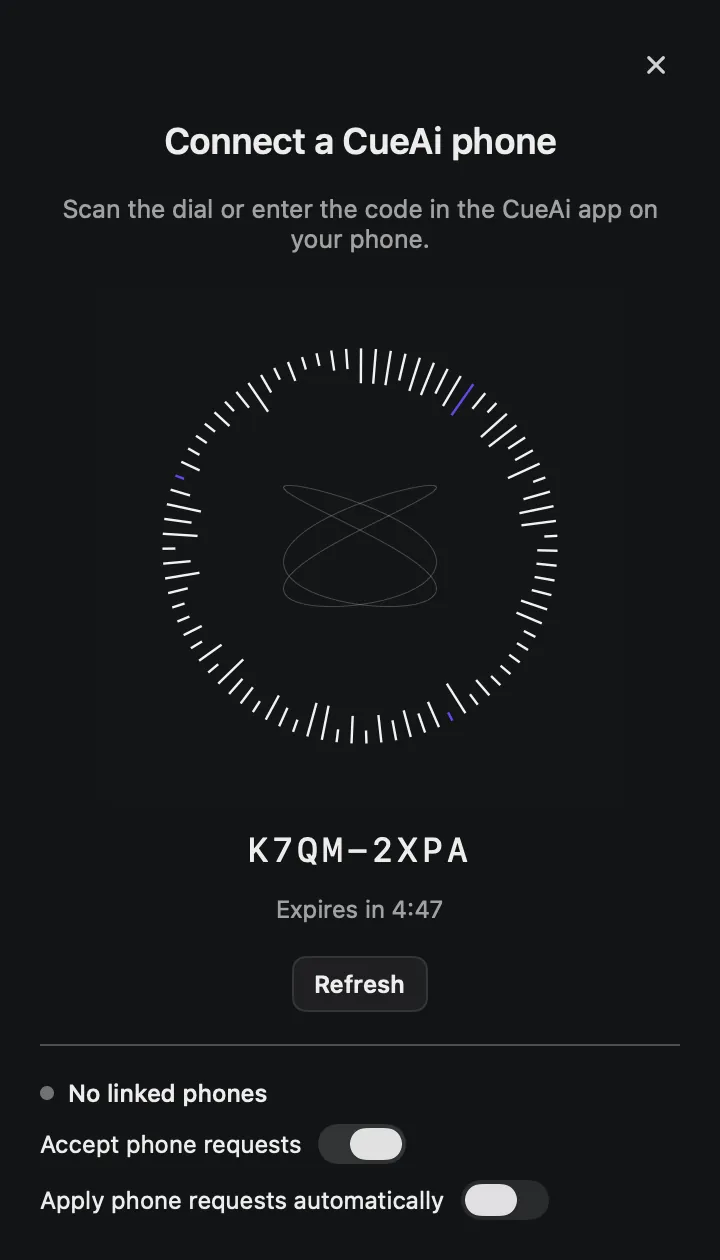
- Choose the iPhone button at the top of the
AIpanel on the Mac. You can also useConnect a CueAi phonein Settings › AI. - The window shows a dial, a connection code, and the time left. When the code expires, choose
Refresh. - In the CueAi app on the phone, tap the start button and point the camera at the dial.
- If the dial does not read, tap the manual code entry below the camera view and type the code.
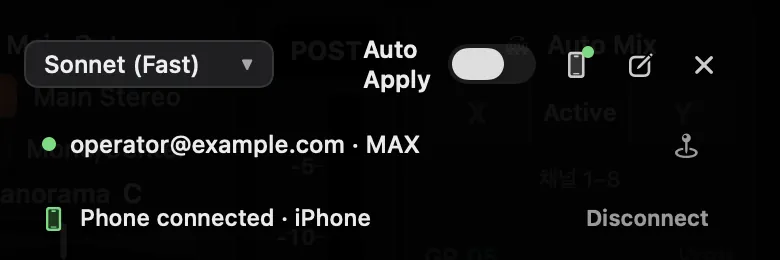
- Once connected, the Mac window shows
Phone connectedwith the phone's name, and the iPhone button gets a green dot.
When you send a request from the phone
The request appears in the AI panel on the Mac as Request from phone, and CueAi reads the mixer and answers. Proposals arrive as cards on the Mac, and you apply them there. Proposal and approval works the same as a request made on the Mac, and credits are used the same way.
| Mac setting | Default | What it does |
|---|---|---|
Accept phone requests | On | Turn it off to stop taking phone requests |
Apply phone requests automatically | Off | When on, small input-processing adjustments from the phone go to the mixer without confirmation on the Mac. Larger changes still need confirmation on the Mac |
Both settings are in the Connect a CueAi phone window and in Settings › AI. They are separate from Auto Apply on the Mac.
Phone requests are refused while the Mac is handling another request, while the AI panel is in a ChatGPT or Claude conversation, or while no mixer is connected.
Disconnect
Choose Disconnect in the AI panel or the Connect a CueAi phone window, then Disconnect all, to disconnect every phone linked to this Mac.