CueAir · Get started
Choose a starting point
updated
This first-use guide shows how to connect a mixer with the CueAir Mac app, find the features you need, and make changes safely. It follows the order a new user needs, and Send a monitor-only click explains how to send a metronome click to the musicians' monitors only. It describes the Mac app, not the iPad app.
Physical WING, TF, CQ, and Ui mixers can be connected too. They were matched to the signals exchanged with each maker's own app, and testing on real consoles is still in progress, so check them in a rehearsal before a service or show. The screens in this guide were captured in the app's built-in demo and offline editing.
| Goal | Start here | Check before finishing |
|---|---|---|
| Explore without a mixer | Explore Demo, then the tabs | Demo meters are not live audio |
| Connect the church X32 | X32/M32 connection | Mixer model, IP, and completed read |
| Try a vocal or instrument starting point | Presets | Target channel and proposed changes |
| Back up before rehearsal | Save and Scenes | Mac file versus onboard scene |
| Ask for help | AI and CueAi | Auto Apply state and proposal targets |
| Share a monitor-only click | Monitor-only click | No click in audience LR or M/C |
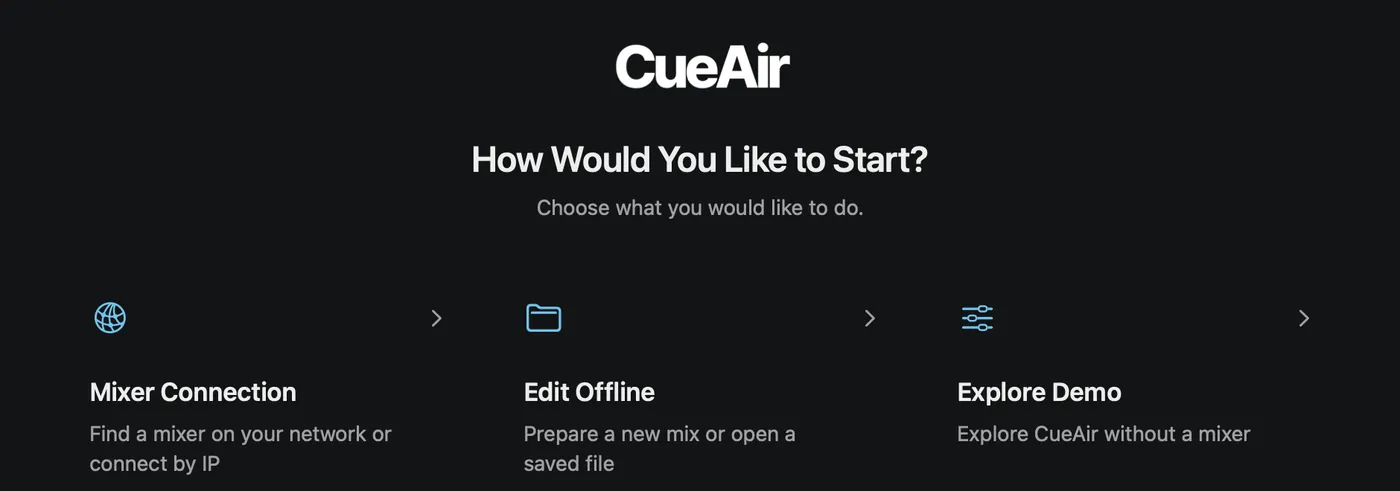
For a short practice session, choose Explore Demo → Behringer → X32 / M32. Select a channel and explore Input, EQ, Sends, and Main. Use Edit Offline, not Demo, when you want to keep a setup as a file.